

How it works
Curious about how AutoPrompt can transform your workday? This page breaks down the magic behind our automation assistant, showing you how it enables LLMs to control other computers remotely and boost your productivity. Discover how AutoPrompt can become your silent work partner.
How to setup
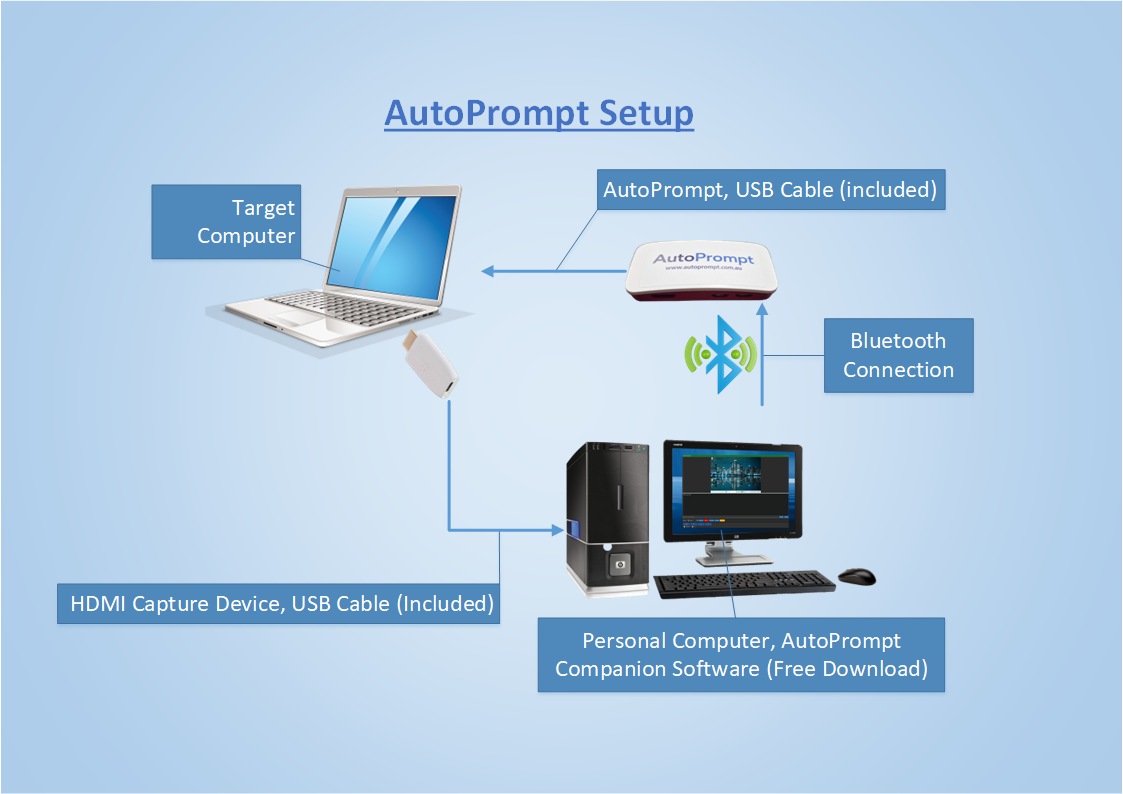
Take a look at the diagram to see where everything fits in. The HDMI Capture device lets AutoPrompt Companion "see" your target computer screen, while delivering mouse and keyboard commands to the AutoPrompt via Bluetooth. The AutoPrompt transmits those commands to the target computer as standard USB keyboard and mouse inputs.

AutoPrompt in action
You prompt the LLM. AutoPrompt Companion shows the LLM your target computer's screen. The LLM works out the keyboard and mouse inputs required to realise your prompt and AutoPrompt Companion transmits those inputs via Bluetooth to the AutoPrompt device.

Effortless automation
The name AutoPrompt comes from our software's unique ability to instruct an LLM to break a complex task into multiple sub-tasks, then continuously prompt it to work through those sub-tasks until the main one is complete. Our software has the LLM assess its progress along the way, so that it can correct mistakes as it goes.
Use our custom Switch feature to endlessly prompt an LLM to work on a task. AutoPrompt Companion will work through sub-tasks until it reaches the end, then it will work through those sub-tasks again, continuosly completing the main task until the user deactivates the Switch.

Improved workday
With AutoPrompt , you can train an LLM to complete virtually any task on another computer using carefully crafted prompts. The AutoPrompt is detected as a standard USB mouse and keyboard, requiring no software installation on the other computer. Only your personal computer needs AutoPrompt Companion, making integration seamless and secure.

Settings Menu Explained

System Prompt Explained
The system prompt is the core instruction manual that guides your AI assistant on how to interact with your other computer. It explains that the AI’s job is to control your other PC using only keyboard and mouse commands, based on what it sees in the live video feed. The prompt encourages the AI to work step by step: first observe what's on screen, then decide on the next small action, carry it out using the correct command format, and always double-check that the action worked before moving on. This careful, visual approach helps ensure reliable and accurate automation.
If you’d like to customize the system prompt, there are a few key parts worth keeping to maintain smooth communication with the program. These include the exact keyboard command format (k:modifier,usage_id, like k:0,4 for the letter "a"), the mouse command formats (m:dx,dy for movement, c:left for clicks, etc.), and the instruction to always reply in structured JSON like {"thought": "...", "actions": ["k:0,40", "m:10,5"]}. These elements act as the common language between the AI and your AutoPrompt Companion, and it’s the same language used by a standard USB mouse and keyboard right off the store shelf. Keeping this in your system prompt will help everything run smoothly while still giving you room to adjust tone, add examples, or refine task instructions as needed.